Styles
The styles, what each is for, and how to switch.
Spritz comes with 4 styles. A style is a starting point: it sets colours, fonts, buttons, product cards and the homepage. All styles use the same sections, so anything you learn in one works in the others.
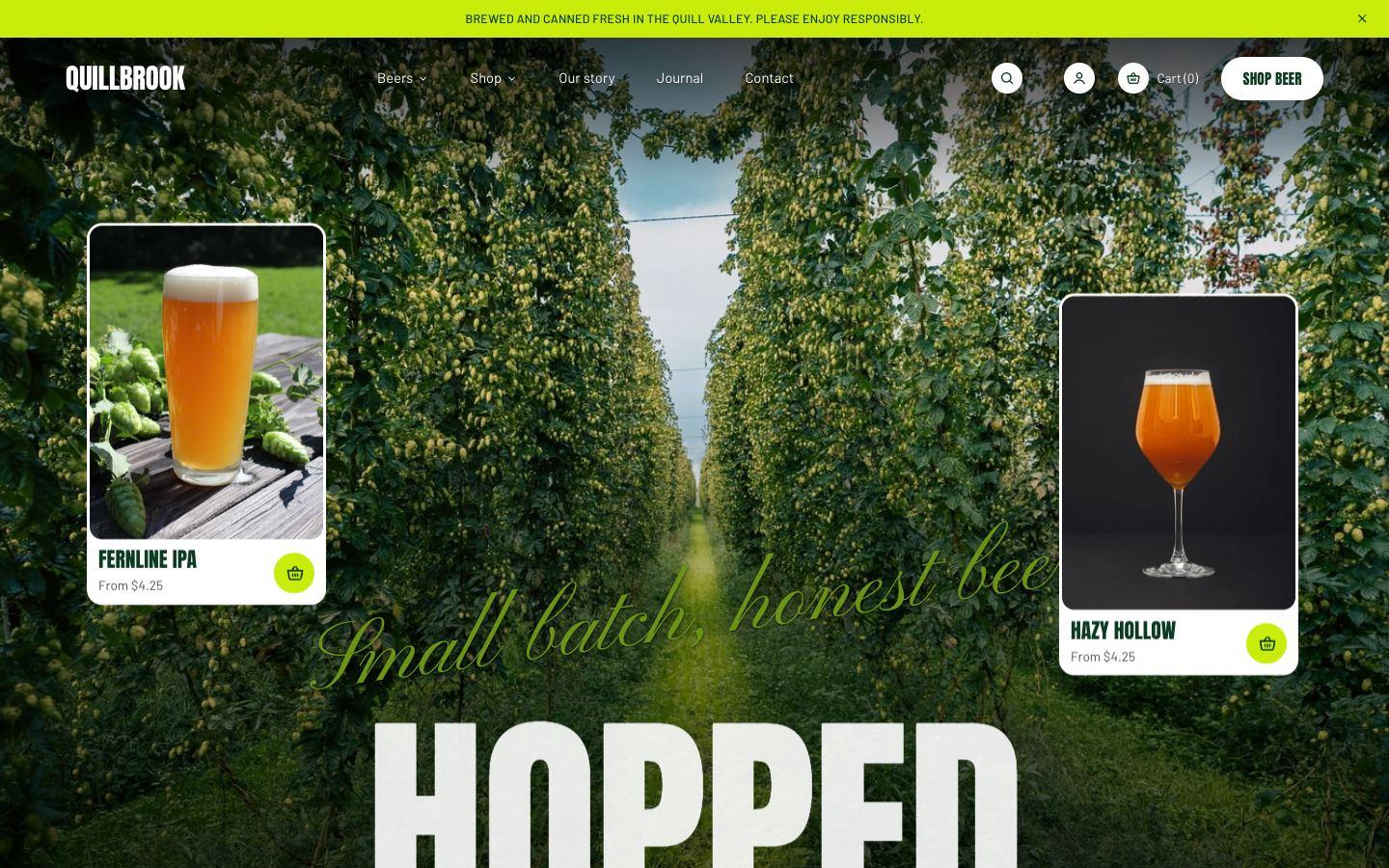
Quillbrook
Hop greens and lime, with a 21+ age check built in.
Made for craft beer · Anton + Barlow
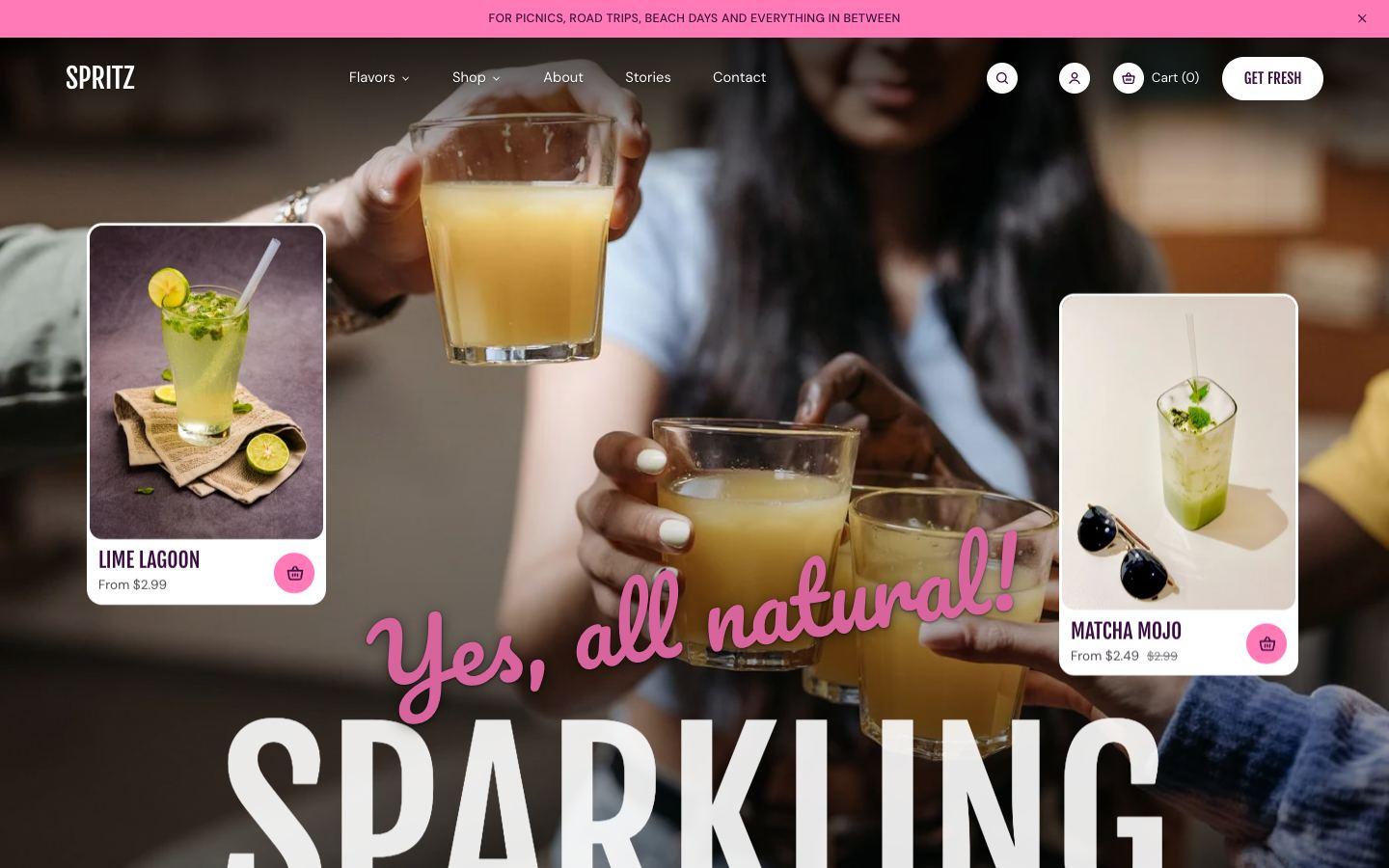
Spritz (default)
Berry pinks and playful type for fizzy drinks.
Made for sparkling soda · Fjalla One + DM Sans
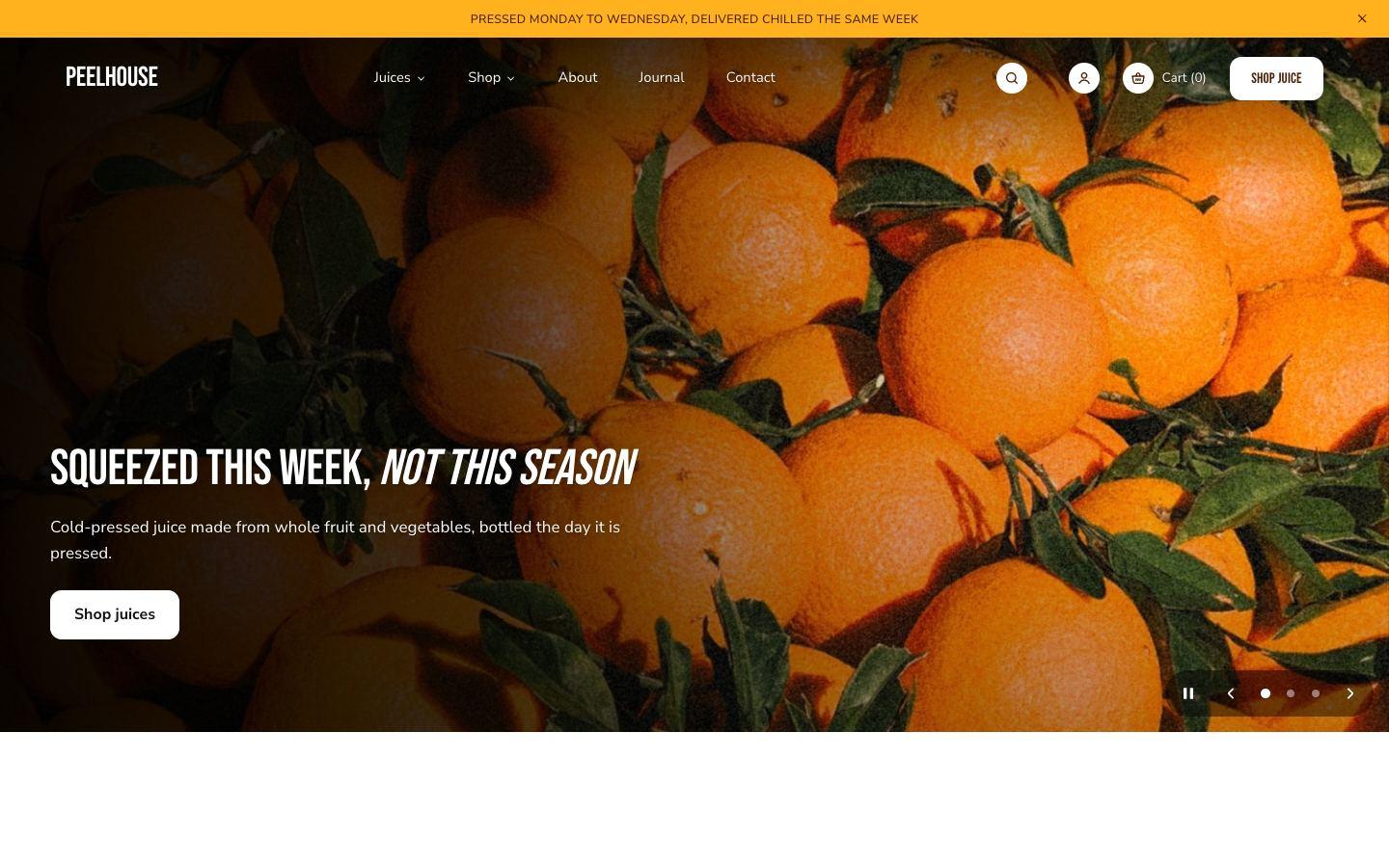
Peelhouse
Citrus oranges, a comparison table and a launch countdown.
Made for cold-pressed juice · Bebas Neue + Nunito Sans
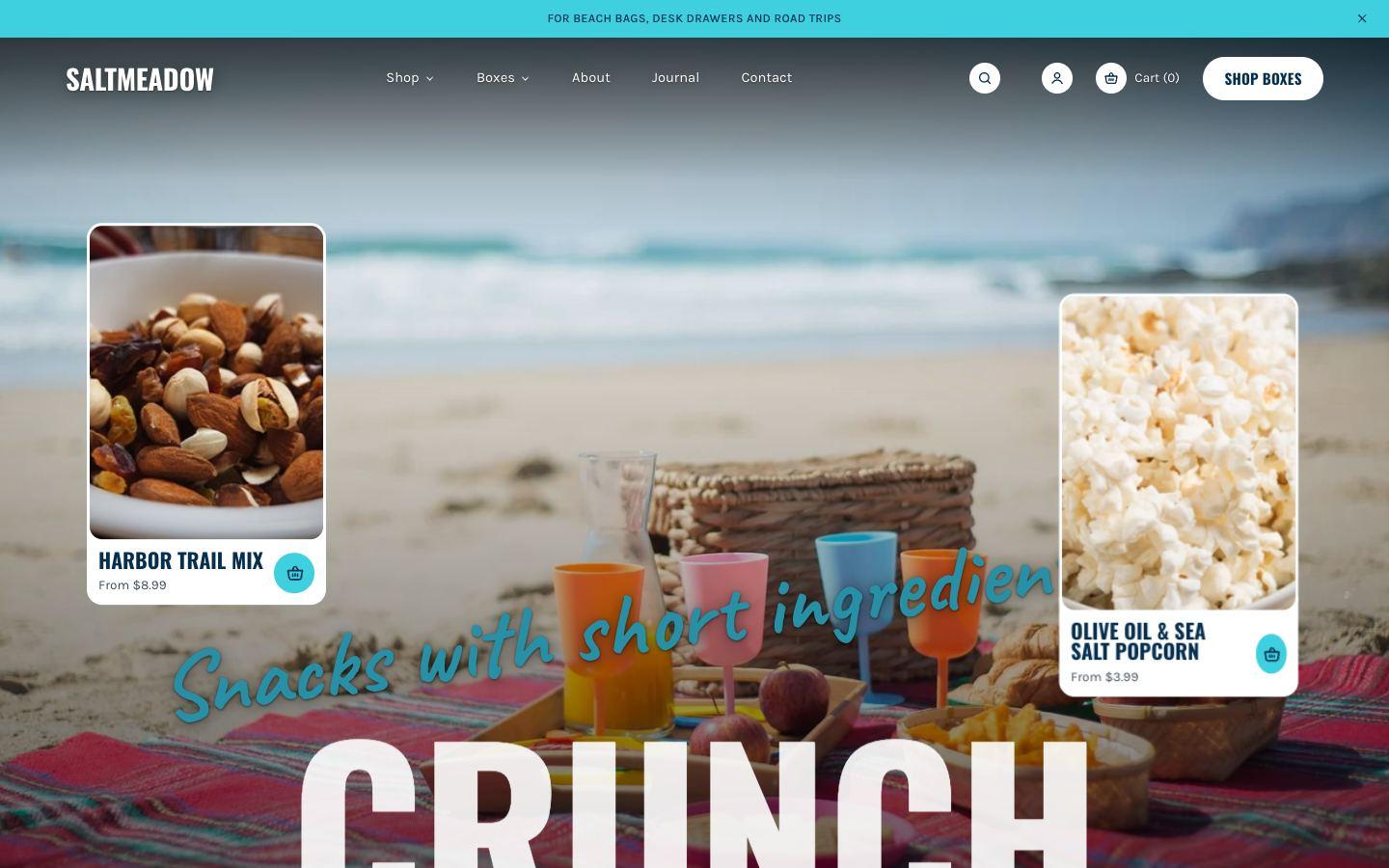
Saltmeadow
Ocean blues, shop-the-look hotspots and snack boxes.
Made for snacks · Oswald + Karla
Choosing a style
You pick a style when you add Spritz from the Shopify Theme Store. Each style has a demo store you can browse first.
Switching style later
- Go to Online Store → Themes → Customize.
- Open Theme settings and choose Theme styles.
- Pick a style and click Save.
Switching changes your colours, typography, buttons and product cards. Your sections, text and images stay as they are: a style switch doesn't replace your homepage. To get a style's demo homepage, add Spritz to your theme library again with that style selected.
Tip: try a style on a copy of your theme first (Actions → Duplicate in Online Store → Themes).